The Scenario Builder describes a role in a real situation — and is honest about every assumption it makes along the way.
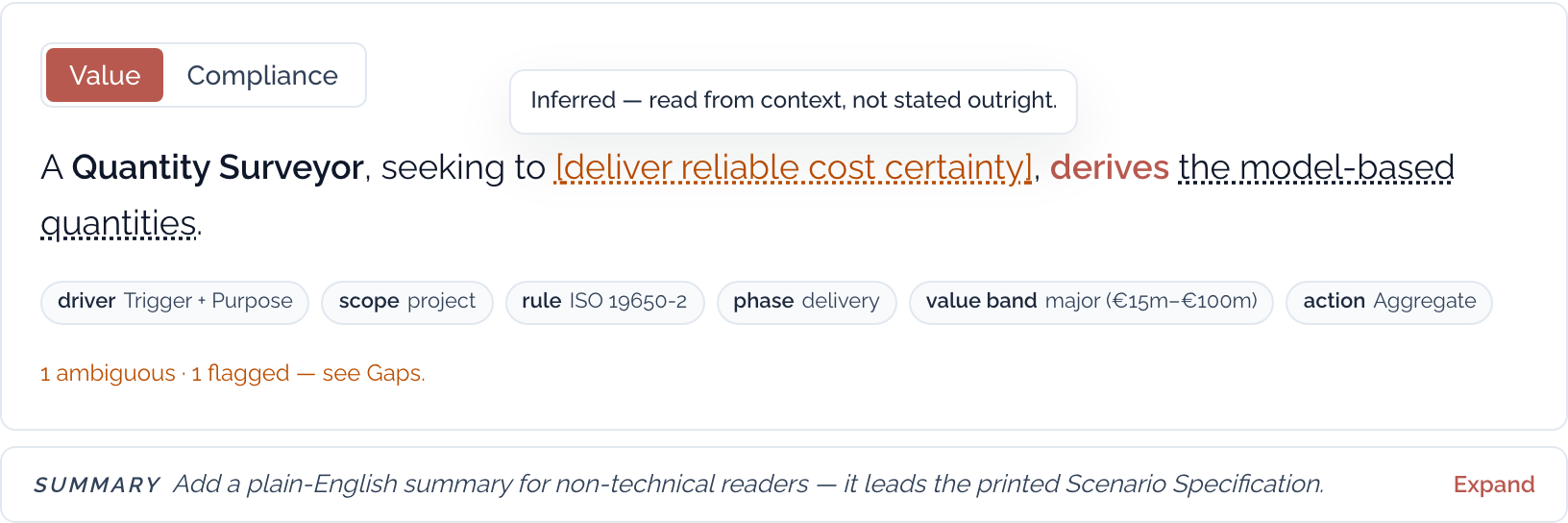
A Role-based Scenario captures who a person is, the circumstances that prompt them to act, and what they must produce or achieve — for example, a chartered quantity surveyor engaged on a BIM-enabled project who must derive model-based quantities to deliver reliable cost certainty. The Builder turns that idea into a structured, reviewable scenario: a live scenario sentence, a record of every assumption behind it, a jurisdiction-aware applicability finding, and — when you are ready — a draft Role with an indicative staged flow you can send for expert verification.
Everything the Builder drafts is decision support, and indicative until verified. Findings and assistant answers surface sourced guidance; they never establish a legal or contractual requirement by themselves.
Three ways in
Describe a role and situation
Chat with the BIMei Assistant in plain English; it drafts the structured scenario and asks one question at a time. Proposed changes arrive as a reviewable diff you accept or reject per field. Recommended for most people.
Use an example
Start from a worked persona and adapt it — the fastest way to see what a complete, honest scenario looks like.
Build from fields
Expert mode — fill the structured form directly, field by field, when you are translating an existing written brief.
To continue a saved scenario, open one you can access. Downloads require sign-in.
Start in the Scenario Builder chat and review the extracted scenario before continuing. Drafting is public; chat actions, downloads and saves show their own sign-in requirements. Saving to an organisation also requires membership, permission and feature availability.
Reading the honesty layer
Scenario fields carry recorded provenance states. Use them to review supplied, inferred, ambiguous and missing details:
Explicit
Stated outright in the source — renders without brackets.
Inferred
Read from context, not stated outright.
Ambiguous
More than one reading is possible.
Missing
Not provided in the source at all.
Human-confirmed
A named person accepted the value; the prior status is kept for audit.
In the scenario sentence, a bracketed phrase is inferred, ambiguous or otherwise unresolved — hover it for the status. The Review tab tiers the same record honestly: blocking items the scenario needs before it can render or resolve, and assumptions worth a human eye. A confidence line counts what is still open — and when nothing has been flagged, it says 'no recorded assumptions — not yet verified' rather than claiming correctness.
Confirm accepts an inferred or ambiguous value you can vouch for — one click, recorded with your name and the time, with the prior status kept for audit. Review jumps to the form field so you can supply or correct the value; missing items only offer Review, because there is nothing to confirm.
Bracketed phrases mark values the Builder could not take verbatim from a source — hover one for the reason.
Ireland — the applicability finding
For scenarios set in Ireland, the Builder checks the scenario's facts against the official CWMF public-sector BIM adoption timeline — the phased 12-milestone schedule. It checks, in order:
Public works — the CWMF mandate covers public works projects regardless of your organisation's own sector: a private firm engaged on a public works project is in scope, and purely private work is out of scope (ISO 19650 may still be adopted voluntarily).
Party position — the mandate applies by party category: the design team (lead appointed and appointed parties) on one track, contractors and supply chain on a later one. The appointing party (client) sets requirements rather than being subject to the delivery mandate.
Project value — each milestone carries a value threshold, from over €100m down to no threshold at all.
Commencement date — the mandate is phased by the date a project commences Stage 1 and is not retrospective; the milestone in force at commencement governs.
Applies — the milestone in force at the commencement date covers this party group and project value.
Does not apply — with the honest reason — not public works, a commencement that predates the mandate, or a value at or below the threshold in force — and, where relevant, when a project of this value would come into scope.
Cannot determine — the scenario does not yet carry a fact needed to decide (public-works status, party position, value or date). This is not a failure — it is the tool refusing to guess, and it names exactly which fact to add.
The finding — and the assistant's mandate answers — are decision support, never legal advice. Confirm obligations against the appointment documents.
From scenario to draft role and flow
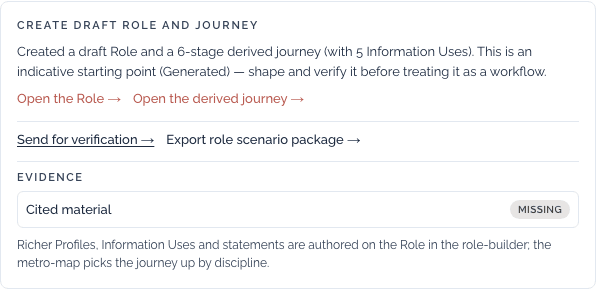
Once a scenario is saved, one action turns it into real draft entities: a Role, its headline Action Statement, and an indicative staged flow. Before anything is created, the assistant proposes enrichment — candidate Information Uses and additional statements, each with a rationale, an honest confidence, and a source citation where the corpus supports one. You pick what to include; suggestions without a source say so plainly.
The result is labelled Generated on the maturity ladder: an indicative starting point to shape in the builders. After editing the scenario, regenerate its draft Role and flow before sending them for verification. Downloads of the current working copy remain available after sign-in.
Once resolved, an Evidence view shows where each element of the scenario stands on source evidence — reviewers approve, challenge or waive each link, and requests for missing sources go straight to the curators. The Report tab tracks the same record: its readiness checklist must pass before the Scenario Specification can call itself client-ready.
Send for verification opens a verification round for the draft Role — the doorway from indicative draft to panel-verified content. How content earns trust →
After resolving: a draft Role and its flow, Generated on the maturity ladder until a review panel verifies them.
Saving, downloading, printing
Draft and refine without an account. Sign in to download or print. Saving to an organisation workspace requires membership, permission and scenarios enabled. Opening, renaming and deleting saved scenarios depend on access, permissions and the scenario’s state.
Data file (JSON)
the canonical machine-readable scenario, including provenance — for re-importing, diffing, archiving or feeding other tools.
Summary (Markdown)
the full Scenario Specification as portable Markdown — for wikis, tickets and review documents.
Print / save as PDF
the typeset Scenario Specification with page numbers and a link back to the platform — the client-facing document for circulation and sign-off.
Publishing, sharing and revoking a report
A scenario can be published as a public report or shared through a private link. Check the intended audience and version before sending either link.
Publish — a public page
creates a public report page. The latest-version address can show a newer publication, while a version-specific link identifies a particular published version. Check which link you are sharing.
Share — a private link
creates a private link to a saved report. Anyone who receives the link can use it, so share it only with the intended recipients. Creating another link does not revoke existing links; revoke a link explicitly when access is no longer needed.
Interim — published with caveats
a report that is not yet complete can still be published, but it is stamped interim and its public page carries the list of what is still missing. The stamp is written by the server and cannot be removed by the person publishing. Your workspace's published-reports list marks which of your public pages are interim.
Revoke — withdraw the public page
withdraws access through the relevant publication or share-link control. Unpublishing a report and revoking a private link are separate actions. Neither recalls copies that someone has already read, downloaded or shared elsewhere.
Publishing, re-publishing and revoking an organisation's report needs the organisation publish permission: owner, admin or content editor. A member below that bar sees the controls explained rather than a refusal. Reading a published address is not a publish act, so copying the link is always available.
Honest limitations
The Builder tells you what it cannot do. The current list:
●One-shot drafts are grounded in the source corpus where it has material; multi-turn chat replies are not source-grounded.
●The assistant asks one question per turn by design, to keep refinement auditable.
●If a chat turn fails, keep your draft open and try again. If the problem continues, contact RPF.
●Unsaved work may have a local recovery copy in this browser. Saved scenarios attempt autosave when saving is allowed; check the save status.
●The Builder and its generated text are English-only for now.
●Desktop-first — mobile works, but the comfortable experience is a desktop screen.
●Avoid editing one saved scenario concurrently; a changed version can pause saving.
●Draft Roles and generated flows are indicative until a review panel verifies them.
Data & privacy
●Scenarios saved to an organisation belong to its workspace. Access depends on membership and permissions.
●An unsaved scenario may have a local recovery copy in this browser. Generation and assistant requests still involve server-side processing; drafting while signed out does not mean no data is processed.
●Saved-scenario chat history is stored for your account and can be restored while you have the required access. Unsaved threads may have a local recovery copy; assistant requests are processed on the server.
●Exported files are copies outside the workspace. Revoking a report or changing workspace access cannot recall copies already downloaded.